
Fixing the “Failed to Send Email” Error in Ghost CMS Login
Ghost CMS is a powerful, open-source platform for building and managing online publications. However, many users encounter the frustrating…
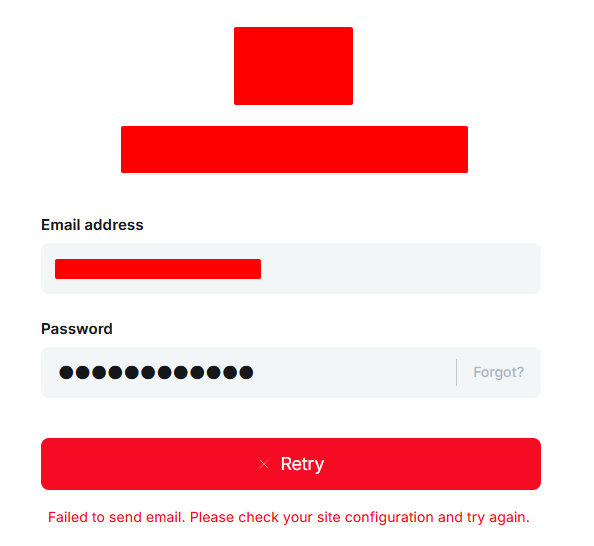
Ghost CMS is a powerful, open-source platform for building and managing online publications. However, many users encounter the frustrating error message: “Failed to send email. Please check your site configuration and try again.” This typically appears during login attempts to the admin dashboard, especially when accessing it from a new device or after a fresh installation. This issue has become more common since Ghost introduced enhanced security features, such as mandatory email verification for staff logins on unrecognized devices.
In this article, we’ll explore the root causes of this error, discuss the recommended solutions (including setting up email properly), and provide step-by-step instructions for disabling the staff device verification feature as an alternative. We’ll cover various installation methods, including direct Node.js setups (via npm or yarn), Docker, and environment variable configurations for production environments. Note that disabling verification reduces security, so it’s best suited for development or testing setups where email isn’t feasible.
Understanding the Error
The error occurs because Ghost requires sending a one-time verification code via email for staff logins from new or unrecognized devices. This is part of Ghost’s built-in two-factor authentication (2FA) system, which aims to protect your admin panel from unauthorized access. If your Ghost instance isn’t configured to send emails — either because no mail service is set up or the configuration is incorrect — the login process fails, displaying the error message.
Common scenarios where this happens include:
- Fresh installations without email setup
- Logging in from multiple devices without prior verification
- Migrations or updates that reset device recognition
- Self-hosted environments where transactional email isn’t prioritized (e.g., local development)
Without a working email configuration, features like user invitations, password resets, and member signups also fail. Ghost relies on Nodemailer for email handling, and it defaults to attempting direct mail if no service is specified, but this often doesn’t work in production.
Recommended Solution: Configure Email Sending
Before disabling security features, the best practice is to set up a transactional email service. This ensures your Ghost site can handle all email-related tasks securely. Popular options include Mailgun, Amazon SES, SendGrid, or SMTP servers from providers like Gmail (though Gmail has limitations for production use).
Steps to Configure Email
- Choose a Provider: Sign up for a service like Mailgun (free tier available for testing) or Amazon SES.
- Obtain Credentials: Get your SMTP host, port, username, and password. For Mailgun, these are under your domain’s sending settings.
- Update Configuration: In your
config.production.json(orconfig.development.jsonfor local testing), add the mail section:
{
  "mail": {
    "transport": "SMTP",
    "options": {
      "service": "Mailgun",
      "host": "smtp.mailgun.org",
      "port": 465,
      "secure": true,
      "auth": {
        "user": "postmaster@yourdomain.mailgun.org",
        "pass": "your-api-key"
      }
    }
  }
}- For Amazon SES:
{
  "mail": {
    "transport": "SMTP",
    "options": {
      "host": "email-smtp.us-east-1.amazonaws.com",
      "port": 465,
      "service": "SES",
      "auth": {
        "user": "YOUR-SES-USERNAME",
        "pass": "YOUR-SES-PASSWORD"
      }
    }
  }
}- Set Default From Address: Add
"from": "'Your Site' <noreply@yourdomain.com>"under themailoptions to customize the sender. - Test and Restart: Restart Ghost and test login. Use Mailgun’s sandbox mode for initial testing (limited to authorized recipients).
Once email is configured, the verification code will be sent, and you can log in successfully.
Alternative Solution: Disable Staff Device Verification
If you’re in a development environment or don’t need email verification (e.g., single-user setup), you can disable the feature by setting security.staffDeviceVerification to false. This bypasses the email requirement but exposes your admin to potential risks, as it removes the extra layer of device-based 2FA. Always consider enabling it in production.
Ghost configurations can be set via JSON files or environment variables (using double underscores for nested keys, e.g., security__staffDeviceVerification=false). Below, we detail how to apply this for different installation types.
Direct Node.js Installation (npm/yarn Setup)
This is common for local development or self-hosted servers using tools like PM2 for process management.
Local Development
- Navigate to your Ghost installation directory.
- Edit or create
config.development.json(orconfig.local.jsonfor git-ignored local overrides). - Add the security section:
{
  "security": {
    "staffDeviceVerification": false
  }
}- Start Ghost with
yarn devornode index.js. - For debugging, run with
DEBUG=ghost:*,ghost-config node index.jsto verify the config loads.
Production Setup
- Edit
config.production.json. - Add the same security section as above.
- Restart Ghost:
NODE_ENV=production node index.jsor restart your PM2 process. - Alternatively, use environment variables: Set
security__staffDeviceVerification=falsein your shell or.envfile, then restart.
This setup applies to installations on VPS providers like DigitalOcean droplets or local servers.
Docker Setup
Ghost’s official Docker image is popular for containerized deployments, often with Docker Compose.
- Locate your
docker-compose.ymlfile. - Under the
environmentsection of the Ghost service, add:
environment:
- security__staffDeviceVerification=false- If using a mounted config file, volume-mount a
config.production.jsonwith the JSON setting and add it to your compose file:
volumes:
- ./config.production.json:/var/lib/ghost/config.production.json- Run
docker-compose up -dto apply changes. - For Kubernetes or other orchestrators, set the env var in your pod spec or deployment YAML similarly.
This disables verification without needing to rebuild the image.
Other Installations (e.g., Heroku, Cloud Platforms)
For platforms like Heroku or Render:
- In your app’s environment variables settings, add
security__staffDeviceVerificationwith valuefalse. - Deploy or restart the app.
- If using a custom buildpack, ensure the config file is included in your repo and edited as in the Node.js section.
For managed hosts like Ghost(Pro), email is handled automatically, so this error is rare — contact support if it occurs.
Final Tips and Security Considerations
- After applying changes, clear your browser cookies or try an incognito window to test login.
- If issues persist, check Ghost logs for errors (e.g., via
ghost logor Docker logs). - Re-enable verification once email is set up by removing the setting and restarting.
- For production, always prioritize email configuration over disabling security to maintain robust protection.
By following these steps, you should resolve the login error and get back to managing your Ghost site smoothly. If you’re still stuck, the Ghost forum and Reddit communities are great resources for further troubleshooting.


Comments ()